
Steps for Photocopying a Document
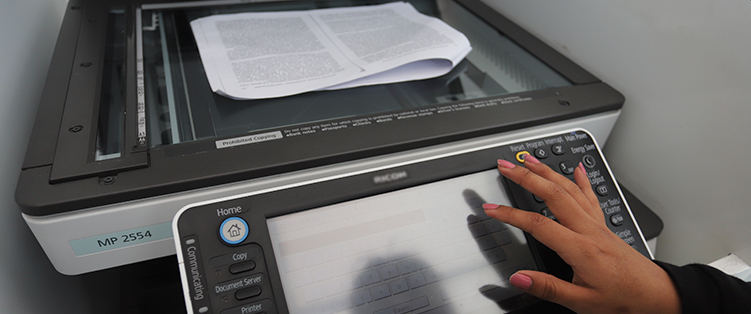
Step 1. Go to one of the 7 self-service kiosks on campus. You can find them here.
Step 2. On the computer:
- Turn it on if it's in sleep mode (Energy Saver).
- Log in with your Virtual Campus username and password (Login).
Step 3. Place the document:
- Scanner: under the cover, upper left corner
- Top Tray: face up (for multiple copies)
Step 4. On the screen:
- Select Home → Copier
- Set up:
– A4 tray
–Type: text or photo
– Duplex (front/back)
Step 5. Press Start to begin.
- To stop, press Copy + Stop.
Step 6. When you're done, go back to Home → PCC → Log Out.
Please note
- Black-and-white photocopying only, A4, single-sided and double-sided.
