
Steps for Printing a Document
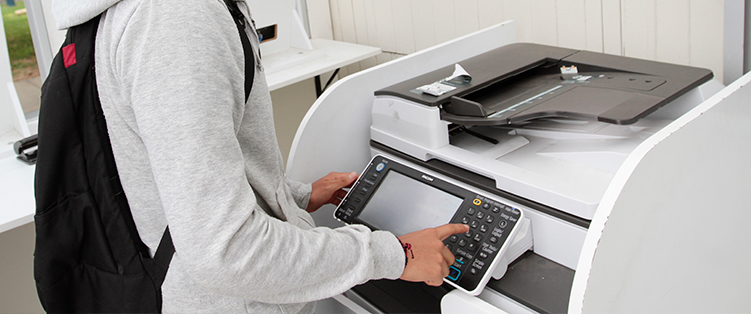
Step 1. Go to imprime.pucp.edu.pe using your Virtual Campus username and password.
- If you forgot your password, you can reset it using the same link.
Step 2. Select the document, specify the pages to print, and review the cost.
Step 3. Upload your files (Word or PDF).
Step 4. Go to one of the 7 self-service kiosks on campus. Find them here.
Step 5. On the computer:
- To wake it up from sleep mode, press the Energy Saver button.
- Enter your username and password, then click "Log In."
- Select the document and click Print.
- To log out, select "Log Out."
Please note
- Black-and-white printing only, A4, single-sided and duplex.
- Only the document title is displayed.
